Build Complex Routing Rules in Pipedrive with Nested Condition Groups
You want a single routing rule that says: “Route to the West Coast senior team if the lead is in California AND either the deal value is over $50K or they selected Enterprise plan.”
With flat AND/OR conditions, you can’t. You’d need two separate rules:
- Rule 1: State = CA AND Value > $50K
- Rule 2: State = CA AND Plan = Enterprise
Both pointing to the same team. Both doing half of one job. And when someone bumps the value threshold to $75K next quarter and updates Rule 1 but forgets Rule 2? Your routing silently breaks, and nobody notices until a rep asks why they stopped getting enterprise leads from California.
Nested condition groups solve this. One rule, one place to maintain: State = CA AND (Value > $50K OR Plan = Enterprise). Done.
What Are Nested Condition Groups?
Nested condition groups let you place an ALL or ANY group inside another group, up to three levels deep. Instead of being limited to a single flat list of conditions joined by one operator, you can build logic that mirrors how you actually think about your routing.
The concept is straightforward. A top-level group might use ALL (every condition must match). Inside it, you add a nested group set to ANY (at least one condition must match). The result is complex Pipedrive routing rules expressed as a single rule instead of several.
Think of it like parentheses in math. 2 + 3 x 4 gives you a different result than (2 + 3) x 4. Nesting lets you control how your lead routing AND OR conditions are evaluated, so the rule does exactly what you mean.
How to Build a Nested Rule
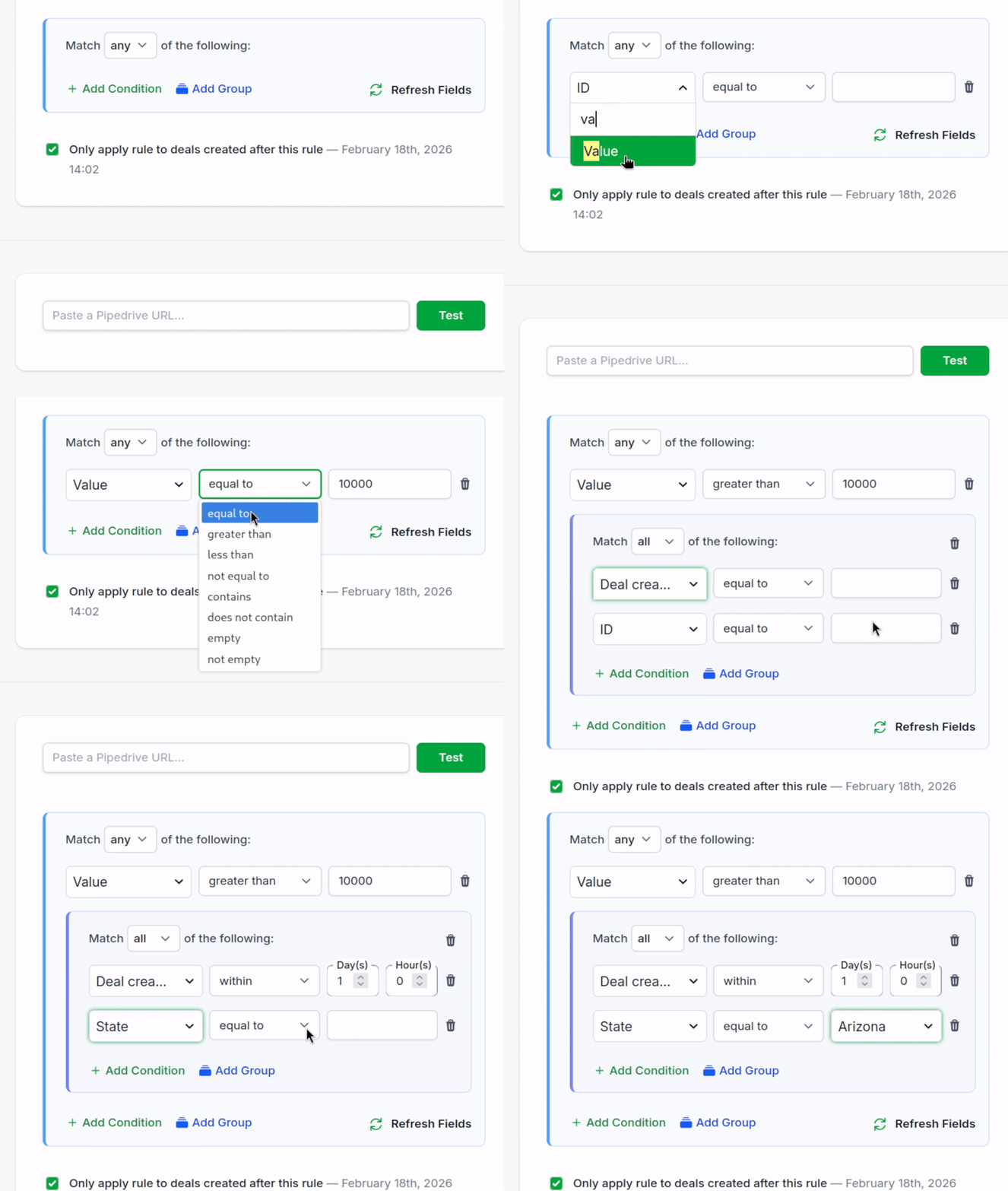
Building nested lead routing rules takes about 30 seconds once you know where to click:
- Open the rule form in RouterJet
- Add your top-level conditions (these form the outer group)
- Click Add Group to create a nested condition group inside the current one
- Set the nested group’s logic to ALL or ANY
- Add conditions inside the new group
- Use Preview to test the rule before saving
That’s it. You can nest up to three levels deep, which covers every real-world scenario we’ve seen.
Real-World Examples
Territory + Deal Size Override
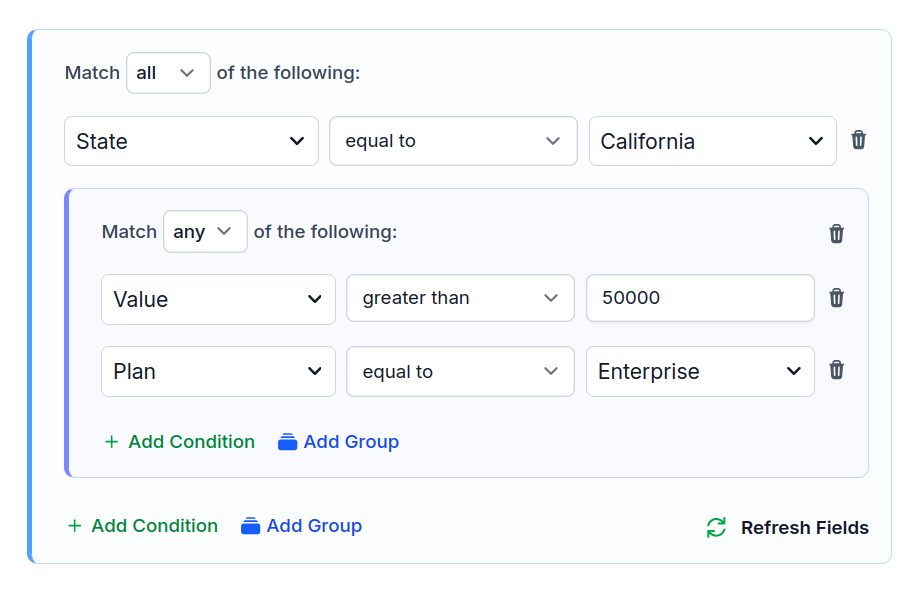
What the sales ops manager wants: “Route to the West Coast team if the lead is in California AND either the deal value is over $50K or they selected Enterprise plan.”
Before (flat conditions only): Can’t express this in one rule. You need:
- Rule 1: State = CA AND Value > $50K → West Coast Senior
- Rule 2: State = CA AND Plan = Enterprise → West Coast Senior
Two rules doing one job. Change the value threshold next quarter, update one, forget the other. Now your enterprise leads from California are routing to two different places depending on which rule fires first.
Now (nested groups): One rule:
State = CA AND (Value > $50K OR Plan = Enterprise)
One rule, one place to maintain. Update the threshold once, and it applies everywhere.
SDR-to-AE Fast Lane
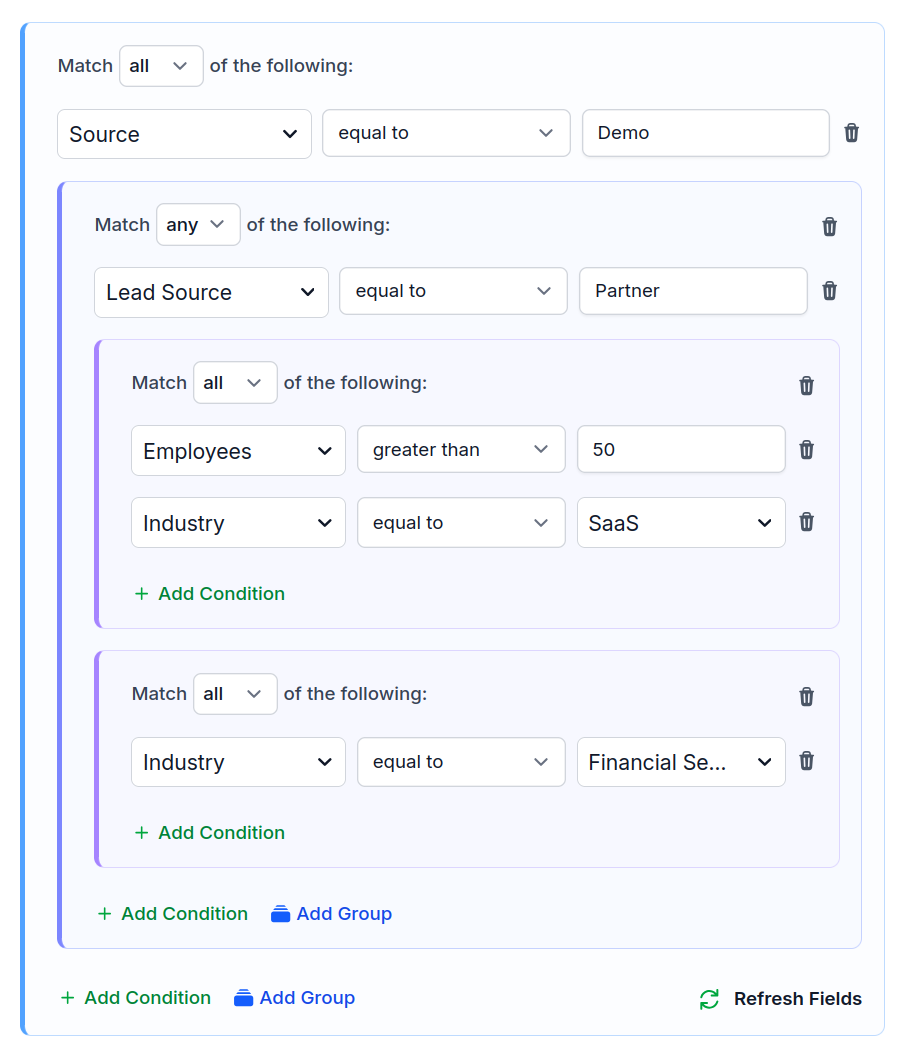
What the sales ops manager wants: “Skip the SDR queue if someone books a demo AND they’re either a partner referral, or they have 50+ employees AND are in SaaS, or they’re in Financial Services.”
Before (flat conditions only): Three rules:
- Source = Demo AND Lead Source = Partner
- Source = Demo AND Employees >= 50 AND Industry = SaaS
- Source = Demo AND Industry = Financial Services
All pointing to the AE queue. All sharing the “Source = Demo” condition. If someone decides demos should also include “Contact Us” form submissions, they need to update three rules. They’ll update two.
Now (nested groups): One rule with nesting:
Source = Demo AND (Lead Source = Partner OR (Employees >= 50 AND Industry = SaaS) OR Industry = Financial Services)
The inner nesting captures “big company in a qualifying industry” as a single concept you can tweak without touching the rest of the rule. Add a new qualifying industry? Drop it into the inner ANY group. Change the employee threshold? One field to update.
Testing Your Nested Rules
The more powerful the rule, the more important it is to verify it works before it touches real leads.
RouterJet’s Preview mode lets you test a rule against sample data before saving. Feed it a lead that should match, confirm it does. Feed it one that shouldn’t, confirm it doesn’t. This takes seconds and saves you from discovering a logic error when a $100K deal gets routed to the wrong team.
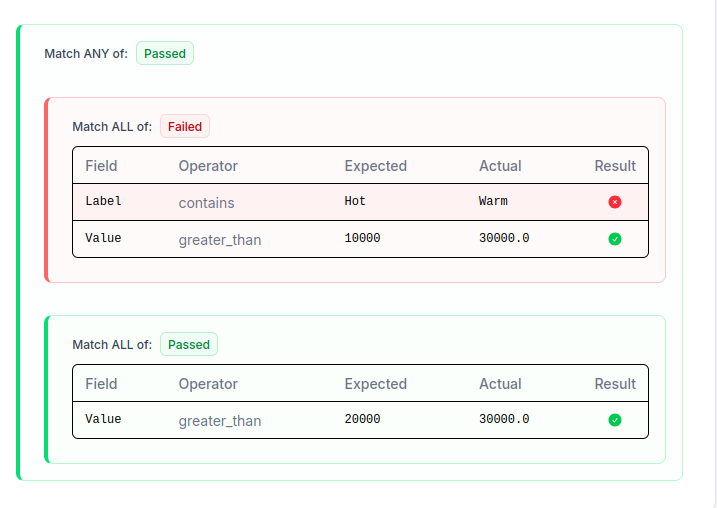
For rules already in production, the Inspector now shows nested pass/fail trees. Instead of a flat “rule matched” or “rule didn’t match,” you can see exactly which group passed, which failed, and which specific condition inside a nested group was the deciding factor.
For a full walkthrough: How to Test Rules Before Saving and How to Debug Routing with the Inspector.
Availability
Nested condition groups are available on the Business plan. If you’re currently on Starter and find yourself duplicating rules to express complex logic, this is the feature that eliminates that workaround. See pricing for the full plan comparison.
What’s Next
Start with the rule that bugs you most. The one where you have two or three rules doing what should be one job, where you’ve already had a near-miss because someone updated one copy and forgot the other. Consolidate that into a single rule with nested groups, test it with Preview, and watch your rule list get shorter and easier to maintain.

Start your free trial
No credit card required.
Assign leads automatically and free up your time.